13 Apr 2009

WordPress Plugin v2.1

Hi everyone, my name is Beau and I’ve been working with the guys here at IntenseDebate to improve their WordPress plugin and its syncing functionality. I’ve been using the WP plugin myself since last year (check out my public IntenseDebate profile!) so it’s been really great to be able to work with the team here and help improve a service that I’m personally a big fan of. WordPress has become a major part of my personal and professional life, so I’m happy that the integration between IntenseDebate and WordPress is constantly improving.

We’ve been hard at work updating the IntenseDebate service and finding out what folks like you would like to see from us. One of the biggest requests we’ve had for the WordPress Plugin is to sync moderation settings between your WordPress blog and IntenseDebate. Well, ask and ye shall receive!

Syncing Discussion/Moderation Settings
The biggest new feature in this version is that all relevant discussion/moderation settings (words/email addresses/IPs that cause a comment to go to moderation or be blacklisted, email notification options etc) will now be synced between your WordPress blog and your IntenseDebate control panel. This means that you can use either of them to make changes, and they will automatically update each other.

IntenseDebate - WordPress moderation sync

In addition to that, we’ve done a lot of code cleanup and some other backend tweaks to make things run more smoothly. We’ve also improved the integration with your WordPress Admin Panel for comment moderation. That panel should load faster now as well thanks to some optimizations we’ve implemented. Did you ever notice that if you saved your WordPress profile information, you’d have to log back into IntenseDebate again? Not anymore, that one got fixed as well.

Install/Upgrade
If you’re installing the plugin for the first time, it will ask you if you’d like to merge your moderation settings with IntenseDebate, right after you log into your account:

Merge moderation settings

We recommend that you leave that box checked, which will add our default spam-catching naughty-words to any that you might have set up in WordPress already. Once you have the new plugin installed, things should automatically start syncing between the two systems whenever you make a change to your moderation settings.

If you already have a previous version of the IntenseDebate plugin installed, you should see an upgrade reminder appear in your Admin Panel soon. If not (or if you prefer to do these things manually), you can download the plugin from the WordPress Plugin Directory now.

Once you’re finished upgrading you’ll need to trigger a sync to make sure things get started properly. Log into IntenseDebate and go to the “Settings” page for your blog. Add a single space character to the “Moderate posts containing the following words” box and hit “Save settings”. Your IntenseDebate settings will now be synced over to WordPress and things will stay in sync from now on.
Manually trigger a sync

Thinking about giving IntenseDebate a try? There’s no better time than the now! Get started with IntenseDebate!

UPDATE

We have identified and fixed an issue with the importer.  Please update your plugin to version 2.1.1.   You should have an upgrade message in your WP plugins panel. If you don’t please download the plugin here.

Posted by Beau Lebens in WordPress Plugin

20 Mar 2009

Opening Up the Debate with Facebook Connect!

That’s right, Facebook Connect is here!

We’ve begun a limited roll-out of Facebook Connect.  Leave a comment if you’re interested in getting in on the early action, and we’ll email you with some instructions.  Don’t worry if you don’t hear from us immediately, we’ll get you in on the Facebook Connect goodness as soon as we can.

Facebook Connect will be available for everyone soon!

Thanks!

id-fbc1

Update – Thursday, March 26

Thanks everyone for your interest in Facebook Connect.  We’re still rolling it out slowly.  If you haven’t heard from us yet please hang in there.  Thanks again for your patience and help!

Update – Tuesday, July 7

Facebook Connect is now live and available for everyone! Please check out this post for more information. Thanks!

Posted by Michael Koenig in features

13 Mar 2009

Learn About Moderation and Blacklisting

We’re kicking off a new series of blog posts that will reveiw some of our features that you might not know about.  The first post in this series will review our moderation and blacklisting settings.  Our moderation page is going through a redesign right now, but this will get you off the ground and familiar with our current settings.

Moderation & Blacklisting Filters
IntenseDebate offers some truly hardcore moderation and blacklisting settings. Get the most out of our service and let us do the work of weeding out comments that are out-of-line with our automatic filters. You can automagically hold comments for your approval or have them deleted by:

  • Keyword
  • Number of links in the comment
  • Email address of the commenter
  • IP address

Enabling these settings is easy.  Just login to your account and select the “Settings” tab.  You’ll find several text boxes on the left side of the page where you can enter in all of the above info.  Make sure you separate your entries with spaces only!  You can access the IP addresses in your comment notification emails.

Comment Posting Settings
We offer some additional comment posting settings to help you weed out the rubbish.  With IntenseDebate you can require:

  • All commenters to signup with IntenseDebate before posting*
  • Commenters must have a previously approved comment*
  • All comments are held for moderation before they are displayed*
  • Or none of the above! (default setting)

*Disabled by default

Akismet Filtering
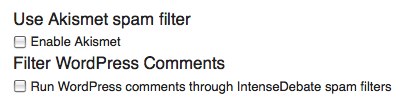
Don’t forget about our Akismet integration!  Your IntenseDebate account provides you with the option to run all comments through our cusotm Akismet integration.  You can enable Akismet filtering in your Settings panel.

Check out your Settings panel in your IntenseDebate account for more options!


Posted by Michael Koenig in features

12 Mar 2009

Downtime

IntenseDebate experienced some unplanned downtime earlier this evening.  We have identified and corrected the issue and we’re back up.  We’re happy to be back on schedule to deliver our next latest and greatest.

Our apologies for the inconvenience.

Posted by Michael Koenig in News

5 Mar 2009

Introducing IntenseDebate Plugins: add the features you want!

intensedebate-plugins
We’re extremely excited to introduce you to the future of commenting – today we launch IntenseDebate Plugins!  We’re opening our doors and making our code available so you can build your own plugins!

We’re kicking it off in style by launching a few plugins of our own to demonstrate the possibilities:

polldaddy-pluginPollDaddy: We love our fellow Automattic company and you should too!  Enable our PollDaddy plugin and your readers will be able to create polls right in the comment section.  Many thanks to Eoin and Lenny (the real PollDaddy’s) for their help!

seesmic-pluginSeesmic: We’re excited to be working with the Seesmic crew to provide video comments.  Enable our Seesmic plugin and give your readers the ability to record and post video comments.

youtube-embedsYouTube: This one was developed by our very own code maestro Jon Fox (the man behind IntenseDebate).  Enabling our YouTube plugin provides your commenters with the option to insert their favorite YouTube vids.

Smileys: Hats off to Isaac and Austin on this one.  It’s all about self-expression.  Add in a 😉 and let everyone know that you’re just being sarcastic and not mean!
smileys-plugin

So all of you developers and IntenseDebate enthusiasts our there, we welcome you to flex your coding muscles to help shape
IntenseDebate to be the comment system that meets all of your needs.  For more information about writing a plugin see our Plugin Resources.

So what does this mean?
There is a brand spanking new Plugins tab in your IntenseDebate dashboard that lists the current plugins available.  To activate a plugin just select “Activate” next to the plugin when you are logged into your account.  Check out the comment section on your blog and you’ll find a plugin icon at the top right of the comment box.  To use the plugin just select the icon and you’ll be ready to roll.

For more information check out our Plugins video and enjoy the soothing voice of our esteemed colleague, Michael Pick.  We’d love it if you helped spread the word, so please grab the embed code and publish a post about our sweet new plugins!

Kudos to Jon, Isaac, Austin, MT, Michael Pick, Eoin, Lenny, and the Seesmic team for all of the help!

Get Started With IntenseDebate!

Posted by Michael Koenig in features

« Previous PageNext Page »
This work is licensed under a Creative Commons Attribution-NonCommercial-ShareAlike 2.5 License. | IntenseDebate – Official Blog